

 Edit This Page
Configuring Repository Settings
Every repository has a settings page in the web UI. This page goes through its sections in the order the page shows them, says what each one changes for the people and tools that use the repository, and lists which sections exist for which package format.
Only administrators can open the settings page. A user with the USER role does not see the Settings button, and is
sent back to the repository list when they open the address of a settings page. See
Roles and access.
To open the settings of a repository, use either of these:
- On the Repositories page, open the menu (⋮) of the repository’s row and click Settings.
- In a repository, click Settings next to Configure.
The address of the page is /<repo-name>/settings.
Which Settings Apply Immediately
Most sections apply the moment you use them, and a message confirms the change. There is no Save button for Visibility, Package Override, Vulnerability Scanning, Version Allowance and the two switches of PGP Signature Key Stores: flipping the switch or choosing another option saves it. The exceptions are the Description, which has Save and Reset buttons, and Rename, Delete Repository and the Docker cleanup actions, which ask for a confirmation first.
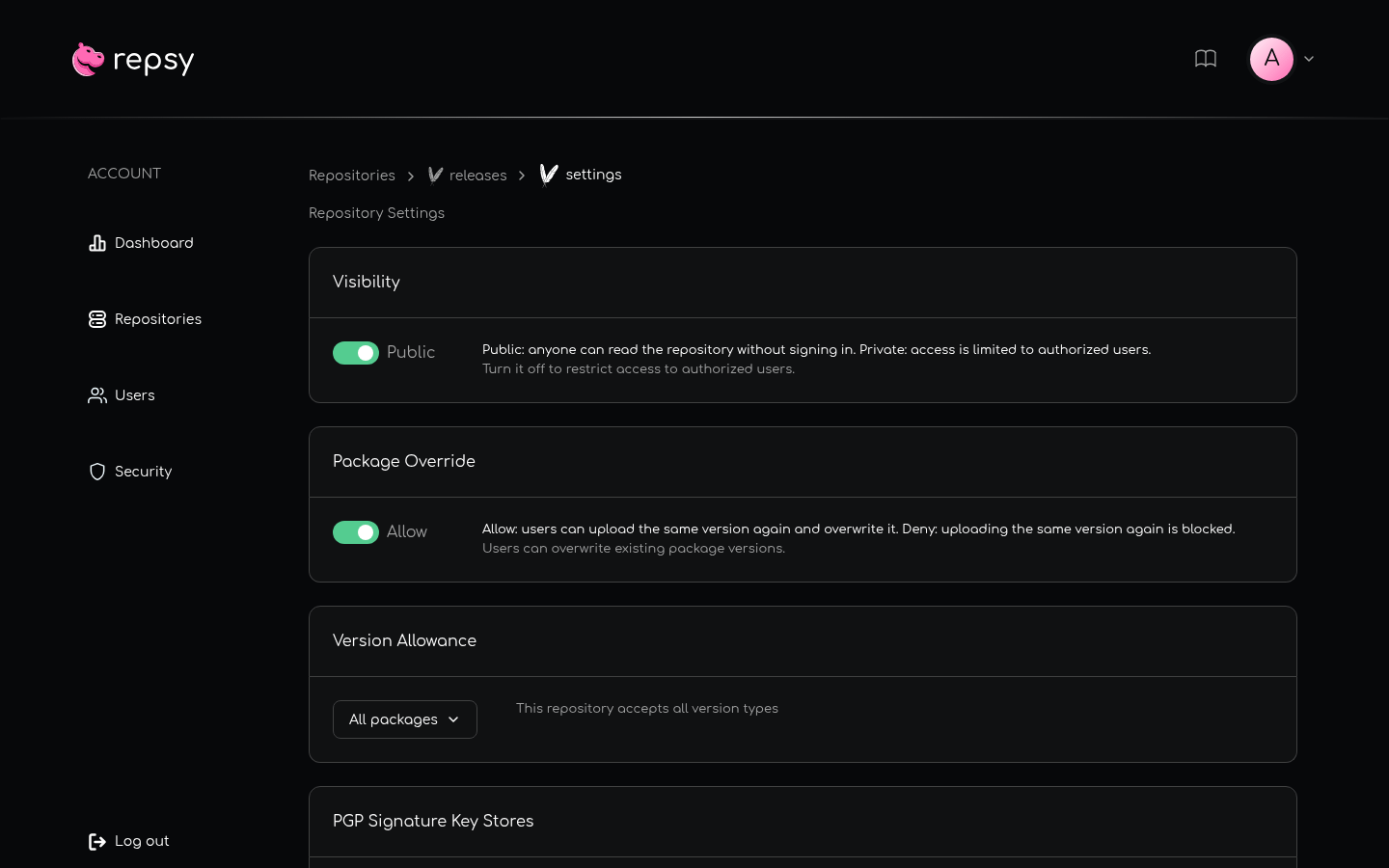
Visibility
The Visibility switch makes the repository Public or Private.
| Setting | What clients see |
|---|---|
| Public | Anyone who can reach the package port can download from the repository, without credentials. |
| Private (the default of a new repository) | Every request needs credentials: the user name and password of a user account, or a deploy token. Without them the repository answers 401. |
- Publishing needs credentials in both cases. A public repository is never open for anonymous uploads.
- The change is immediate. Switching a repository to Private stops every client that reads it without credentials, for example a build job that used to download from it anonymously, on its next request.
- “Private” means “sign-in required”, not “limited to certain users”: every user account of the instance can read and write every repository. See Understanding Public vs Private.
- The web UI always asks for a sign-in, also for a public repository. Visibility is about the package clients on the package port.
Package Override
The Package Override switch decides what happens when a client uploads something that already exists. It is labelled Allow (the default of a new repository) and Deny.
- Allow: the upload replaces what was stored.
- Deny: the upload is refused and nothing changes.
What counts as “the same” depends on the package format:
| Format | What an upload of the same thing is |
|---|---|
| Maven | A file of a release version that is already stored. A SNAPSHOT deploy is never an override, because every deploy writes new timestamped files. See Maven Upload Rules. |
| npm | A version of a package that already exists. |
| PyPI | A file with a name that already exists. See Publishing a Python Package with Twine. |
| NuGet | A version of a package that already exists. With Allow, the new package replaces the stored one. |
| Ruby | A version of a gem that already exists. |
| Helm | A chart version that already exists, pushed the classic way or as an OCI artifact. |
| Docker | A tag that already exists and points at another image. With Allow the tag moves to the new image and the old image stays pullable by its digest. See Managing Docker Tags and Manifests. |
The error message and the HTTP status that a client gets on a refused upload differ between formats, so each format’s publishing page lists the one for that format.
Cargo and Go repositories have no Package Override section. Both formats are immutable: a version that exists is never replaced, whatever the settings say.
Turning Deny on does not change what is already stored. Deleting a version removes it, and after that you can publish the same version again, also with Deny.
Vulnerability Scanning
This section only appears when the instance has a scanner service that supports the package format of the repository. Scanning requires the scanner service. Without it, the section is not shown.
When the section is there, the switch decides whether newly pushed versions are scanned automatically. With it on, every push starts a scan. With it off, a push does not start a scan, and a version can still be scanned by hand. The switch is labelled Allow and Deny like the one of Package Override.
Version Allowance
Version Allowance exists for Maven and NuGet repositories only. It restricts a repository to one kind of version, and it is a drop-down with three choices:
| Format | Choices | What the repository accepts |
|---|---|---|
| Maven | All packages (the default of a new repository) | Release versions and SNAPSHOT versions. |
| Maven | Snapshots | SNAPSHOT versions only. |
| Maven | Releases | Release versions only. |
| NuGet | All packages (the default of a new repository) | Every version. |
| NuGet | Pre-release | Only versions with a pre-release label, for example 1.0.0-alpha.1. |
| NuGet | Stable | Only versions without a pre-release label, for example 1.0.0. |
An upload of a kind that is not allowed is refused, and nothing is stored. What was stored earlier stays listed and downloadable. For the exact errors of a Maven repository see Maven Upload Rules.
PGP Signature Key Stores
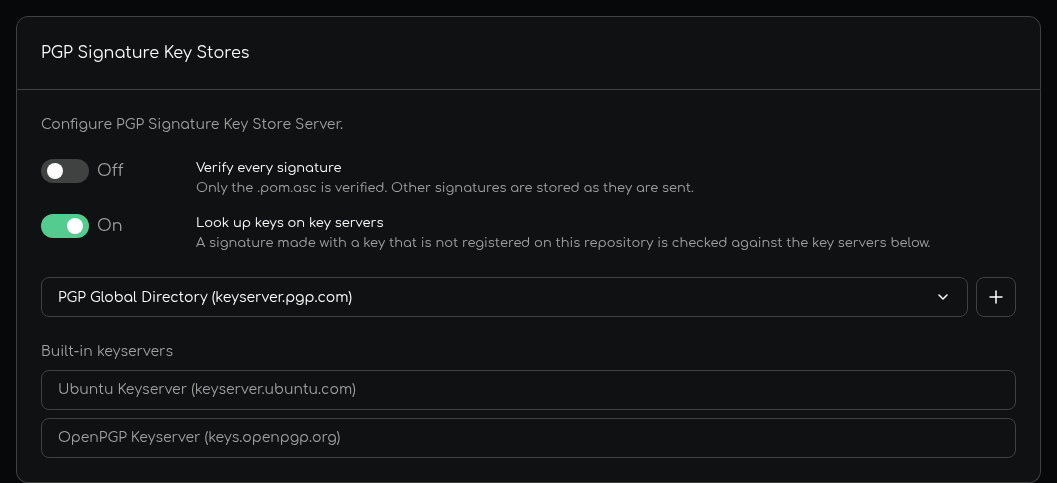
This section exists for Maven repositories only. It controls how Repsy verifies the OpenPGP signatures (.asc files) that
Maven and Gradle upload next to the artifacts.
- Verify every signature. Off by default: only the signature of the POM is verified. On: every signature is verified before it is stored, and a version is shown as signed only when every file of it has a verified signature.
- Look up keys on key servers. On by default. Off means air-gapped: only the public keys registered on the repository are used, and no key server is contacted.
- Key servers. The two built-in key servers are listed. You can add more from the list your instance offers, and remove the ones you added.
Both switches save at once. For what Repsy checks, how to register a public key and how to sign with Maven and Gradle, see Signing Maven Artifacts.
Deploy Tokens
Here an administrator creates, rotates and revokes the deploy tokens of the repository. It exists for every package format. A deploy token belongs to one repository. It is deleted with the repository. See Creating a Deploy Token.
Repository Storage
Shows the disk space that the repository uses. It exists for every package format.
Repository Info
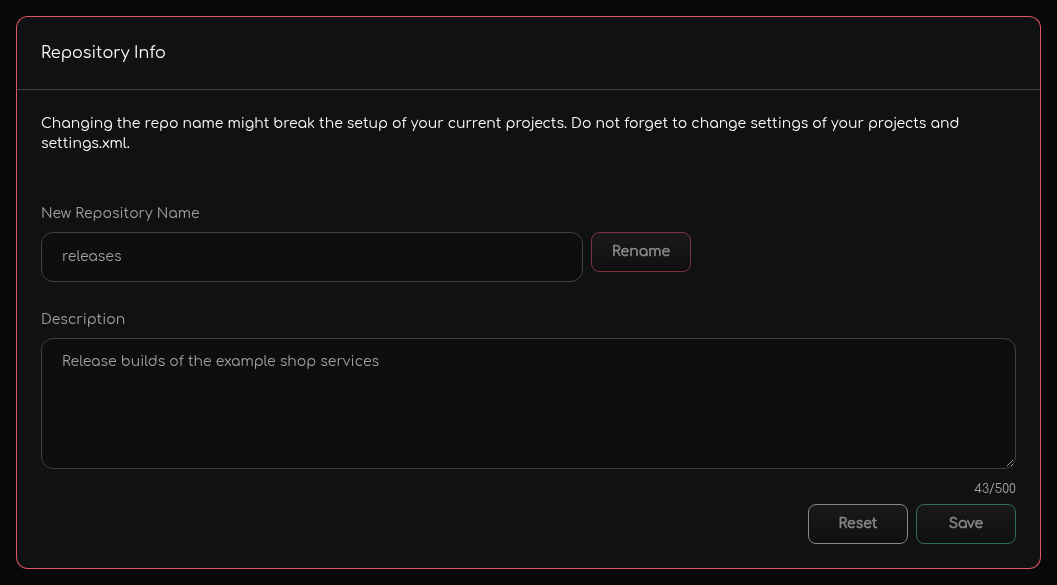
This section renames the repository and edits its description. It exists for every package format.
Renaming
Type the new name and click Rename, then confirm in the dialog. The button stays disabled while the field holds the current name or an invalid name. A new name follows the same rules as when you create a repository:
- up to 25 characters, only letters, digits,
-and_, and it does not start with-; - it is not one of the reserved names, and no other repository, of any package format, has it.
What changes for clients: the address of the repository contains its name, so every client configuration that points at the old address stops working. The old address stops working and the new address works at once. Update:
- the repository address in your build files and client configuration, for every package format, and the repository
reference of container images (
<your-repsy-host>/<repo-name>/<image-name>); - files that record the address that something was downloaded from, such as lock files;
- the scripts and CI settings that use the address. The Configure dialog of the renamed repository shows the configuration with the new name.
What stays: everything the repository contains, its settings and its deploy tokens. Nothing is copied or moved when you rename: the files are stored under an internal id, not under the name.
The panel warns “Do not forget to change settings of your projects and settings.xml”. settings.xml is a Maven file.
The advice applies to every package format: change whatever holds the address of the repository.
Description
The description is free text of up to 500 characters, and the counter under the field shows how many you have used. Click Save to store it, or Reset to throw away an edit. Saving needs no confirmation.
Untagged Manifests and Orphan Layers
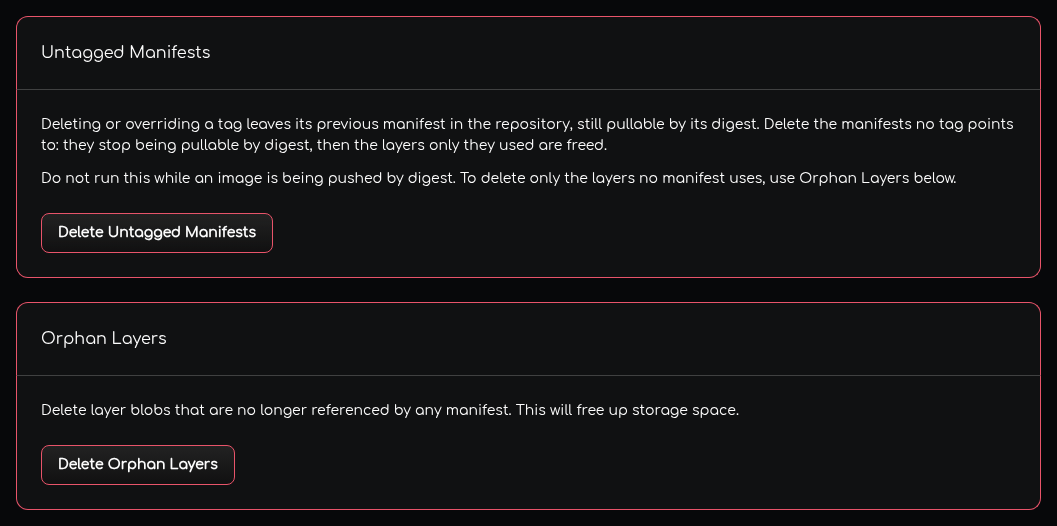
These two sections exist for Docker repositories only. They are the manual clean-up of a repository:
- Untagged Manifests, with the button Delete Untagged Manifests, deletes every manifest that no tag points to. Those manifests stop being pullable by their digest, and then the layers only they used are deleted.
- Orphan Layers, with the button Delete Orphan Layers, deletes the layers that no manifest uses. It does not touch manifests.
Both ask for a confirmation and cannot be undone. Do not run Delete Untagged Manifests while an image is being pushed by its digest. The page Managing Docker Tags and Manifests describes when to use which.
Delete Repository
The last section deletes the repository, after a confirmation. It exists for every package format, and it is irreversible.
- The repository disappears from the list, and every client that uses its address gets an error from then on.
- The repository, its packages and versions and its deploy tokens are removed from the database.
- The files of the repository are moved to the trash, not deleted at once: the whole folder of the repository goes to
the
trashfolder of its package format, and Repsy removes it for good once it is older thanTRASH_RETENTION, seven days by default. Until then the files keep using disk space. - The trash is not an undelete function. Repsy has no way to bring the repository back. To recover a repository that you deleted by mistake, restore a backup. See Managing Storage and Cleanup and Persisting Data and Backups.
- The name is free again, so you can create a new repository with it.
Settings per Package Format
| Package format | Package Override | Version Allowance | PGP Signature Key Stores | Docker cleanup actions |
|---|---|---|---|---|
| Maven | Yes | Yes: all packages, snapshots or releases | Yes | No |
| npm | Yes | No | No | No |
| PyPI | Yes | No | No | No |
| Docker | Yes | No | No | Yes |
| Cargo | No, versions are immutable | No | No | No |
| Go | No, versions are immutable | No | No | No |
| Helm | Yes | No | No | No |
| NuGet | Yes | Yes: all packages, pre-release or stable | No | No |
| Ruby | Yes | No | No | No |
Every format has Visibility, Deploy Tokens, Repository Storage, Repository Info and Delete Repository. Vulnerability Scanning appears for the formats that the instance’s scanner service supports, and only when there is one.

