

 Edit This Page
Browsing and Deleting Packages
The web UI shows what a repository contains, and gives you the client configuration to use it. This page describes the package pages and their controls, and then what deleting a package, a version, an image or a tag removes from the repository and what your clients see afterwards.
Everybody who is signed in can browse. Deleting needs the ADMIN role. See Roles and access.
Finding a Package
Open Repositories in the sidebar and click a repository. It opens on the list of what it contains: the groups of artifacts, packages, images, crates, modules, charts or gems, depending on the package format.
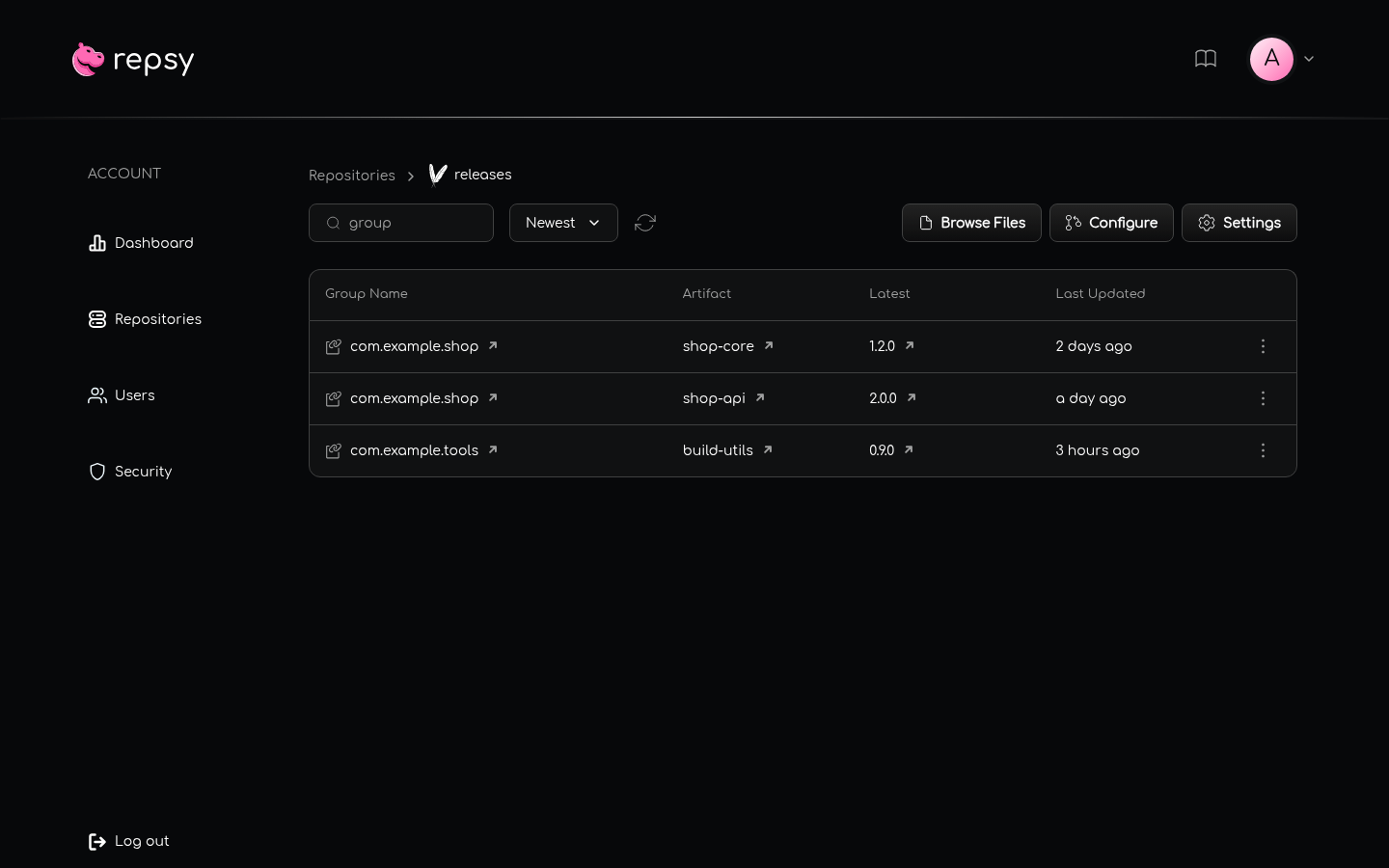
Every list works the same way:
- Search. The box above the list filters by name and starts again from the first page. Its placeholder tells you what it searches: the group in the repository list of a Maven repository, then the artifact, the version or the tag on the pages below it. The File name box of the Maven file browser filters the files of the directory you are in.
- Sort. The selector offers Newest and Oldest. The lists of Cargo, Helm, NuGet and Ruby can also sort by name.
- Pagination. Every list shows ten rows per page, and the pager below the list moves between the pages.
- Refresh. The refresh button reloads the list.
- Open. A row is a link: click it to open the item. On a narrow screen the rows are shown as cards.
A list without rows shows an empty-state picture instead.
Packages, Versions and Version Details
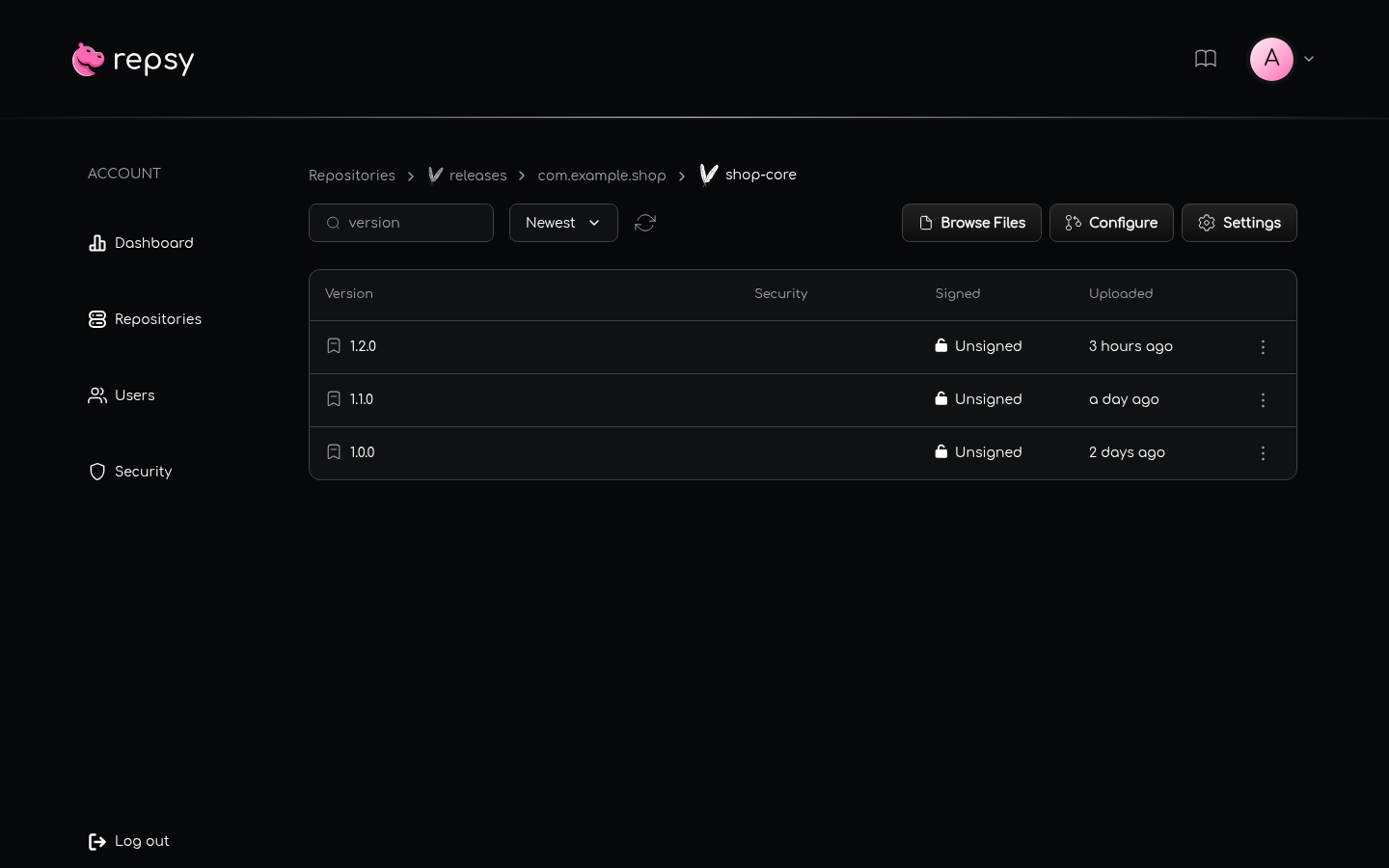
Each package format goes down the same three levels: the list of packages, the list of the versions of one package, and the page of one version.
| Package format | The list shows | The version page shows |
|---|---|---|
| Maven | Every artifact with its group. Click the group to see the artifacts of that group only. | The data of the POM, whether the version is signed, and the snippets for Maven and Gradle. |
| npm | The unscoped packages, and the scopes with their packages | The README, the metadata of package.json and the install command. |
| PyPI | Packages. Their versions are called releases. | The long description, the kind of release (final, pre or dev) and the install command. |
| Docker | Images, then the tags of an image, then the manifests of a tag | The docker pull command, the manifest and the config of the image. |
| Cargo | Crates | The README, the Cargo.toml line, and Add Dependency or Install Binary. |
| Go | Modules. A module path with slashes stays whole. | The address of the .info, .mod and .zip files of the version, which a GOPROXY client requests. |
| Helm | Charts, pushed the classic way and as OCI artifacts, in one list | The install command for the classic repository and the pull command for OCI. |
| NuGet | Packages, with stable and pre-release versions side by side | Four install commands and the metadata of the .nuspec. |
| Ruby | Gems | The install commands, the platform and the checksum. |
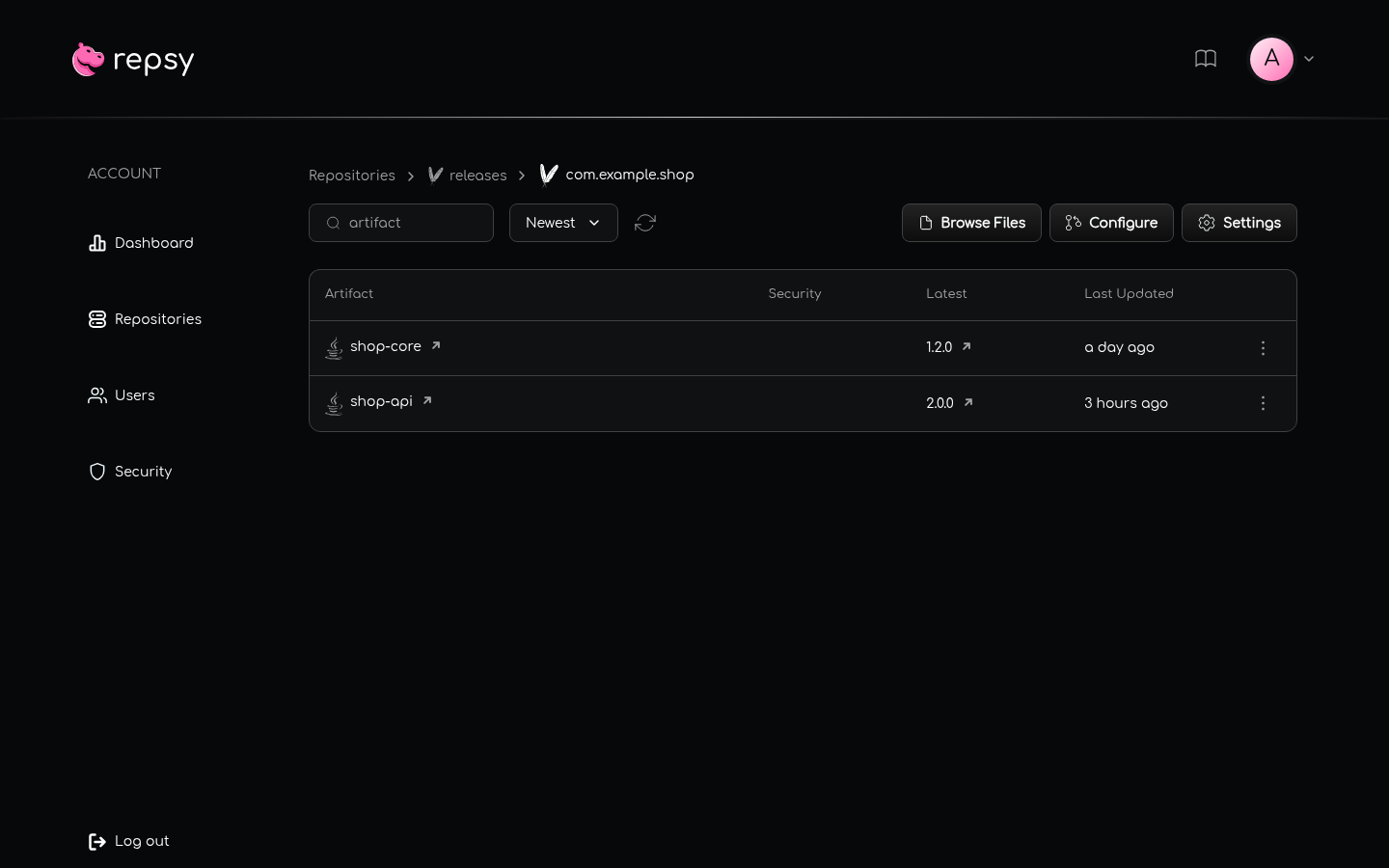
com.example.shop: the toolbar has the search, the sort, the refresh button, Browse Files, Configure and, for administrators, Settings.A version that a client marked is still listed, with a badge. A version that was yanked (Cargo and Ruby) or unlisted (NuGet) is not deleted, and stays on the list and on its own page. Deleting is a separate action that only an administrator can do.
Configuring Your Client
The Configure button of a repository opens a dialog with the configuration that your package manager needs to use
this repository: the address, filled in with the address of your instance and the name of the repository, and the commands
or the settings for the client of the format. It is in the toolbar of the lists of a repository, and it is open to every
signed-in user. The dialog does not hold a password: where a secret belongs in the configuration, it shows a placeholder such as
YOUR_PASSWORD, which you replace with your password or a deploy token (see
Creating a Deploy Token). For how the address is formed, see
Ports and Repository URLs.
The pages of a version show the commands to install that version, with a copy button on every block.
Browsing the Files of a Maven Repository
Browse Files in a Maven repository opens a file browser on the directory layout of the repository.
- The bar above the files shows where you are. Click a part of it to jump back, or use the back and forward buttons.
- Click a directory to open it. Click a file to download it.
- The File name box filters the directory you are in.
A download starts through a token that is valid for one minute, so a link you copy from the download does not keep working.
Docker Images and Tags
A Docker repository lists images. Open an image to see its tags with their platform, and open a tag to see its
manifests. A page of an image also shows the docker pull command for it.
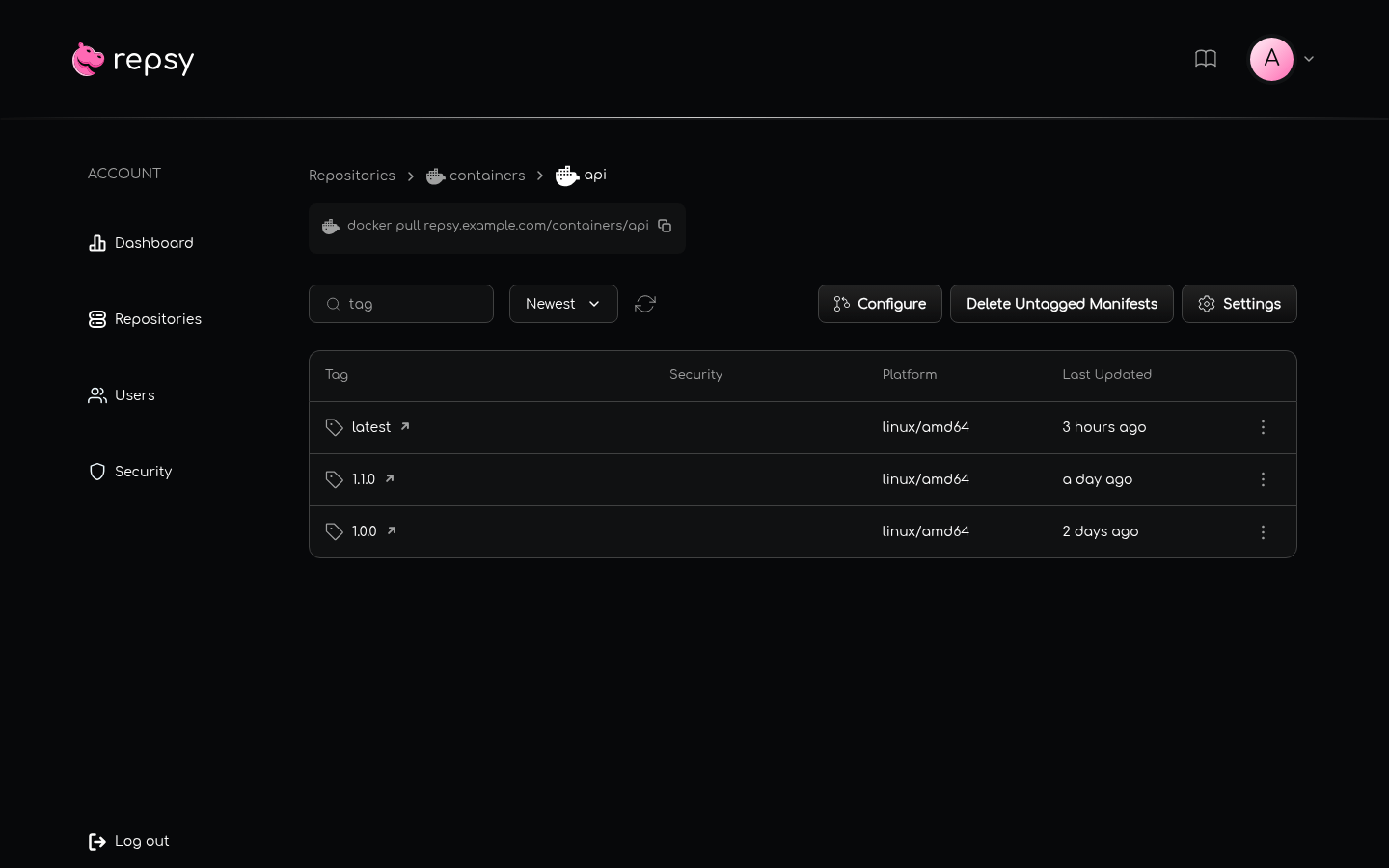
An image that has lost its last tag stays in the list as No tags, together with the number and the size of the untagged manifests that it still stores. It can still be pulled by its digest. Its page explains this and offers to delete the untagged manifests or the image. See Managing Docker Tags and Manifests.
Deleting Packages
Only administrators can delete. For everyone else, the menus and the delete buttons are not there, and a delete request to
the API is refused with 403.
There are two ways to delete:
- In a list, open the menu (⋮) at the end of a row and click Delete.
- On the page of a version, click Delete Version, or, on the page of a Docker tag, Delete Tag.
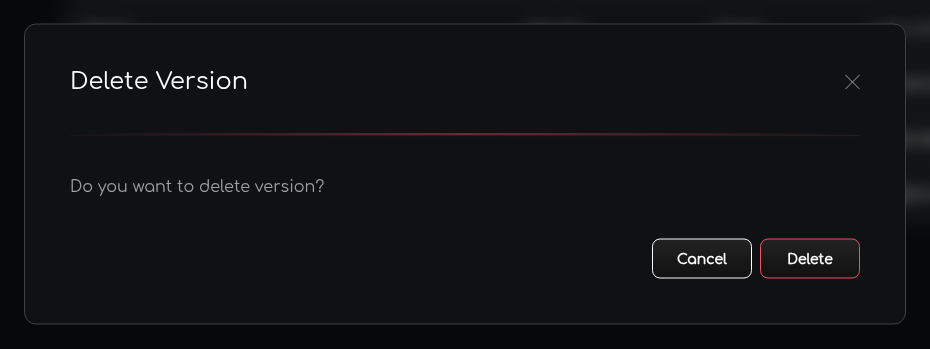
Repsy always asks first: a dialog says “Do you want to delete …?”, with Cancel and Delete. Some dialogs add a line about what else goes. Nothing is deleted until you confirm, and a deletion cannot be undone.
What Each Delete Removes
A delete works on the whole item you chose: deleting a package removes all of its versions, and deleting a version removes that version. Deleting the last version of a package removes the package too, because a package without a version has nothing to serve.
| Package format | Delete on a list row | Delete of a version |
|---|---|---|
| Maven | On the list of the repository: the whole group, with every artifact and version of it. The dialog names the group and how many artifacts and versions go with it. Nested groups such as com.example.sub next to com.example stay. On the page of a group: the artifact with all its versions, and the group too when it was its only artifact. | The version. When it is the last version of the artifact, the artifact goes too, and the group with it when that was its only artifact. |
| npm | The package with all its versions. In a scope, only that package. | The version. The last version removes the package. |
| PyPI | The package with all its releases. | The release. The last release removes the package. |
| NuGet | The package with all its versions. | The version. The last version removes the package. |
| Cargo | The crate with all its versions. | The version. The last version removes the crate. |
| Go | The module with all its versions. | The version. The last version removes the module. |
| Helm | The chart with all its versions, classic and OCI. | The version. The last version removes the chart. |
| Ruby | The gem with all its versions. | The version. When only one version that is not yanked is left, the whole gem is removed. |
| Docker | The image with all its tags and manifests. Its layers stay until a clean-up action deletes them. | A tag: only the tag. The manifest stays stored and can still be pulled by its digest. |
Deleting a Docker tag never deletes the image, so an image can be left with no tags. To remove the manifests and free the disk space, use Delete Untagged Manifests, or delete the image. See Configuring Repository Settings.
What Happens to the Data
- Database. The rows of what you deleted are removed: the package, the versions, and the tags and manifests of a Docker image. The disk usage of the repository is reduced by what was freed.
- Files. The files are not deleted at once. Repsy moves them into the
trashfolder of the package format, and removes them for good when they are older thanTRASH_RETENTION, seven days by default. They keep using disk space until then, and the trash is not an undelete function. See Managing Storage and Cleanup. - Maven metadata. When a version of a Maven artifact is deleted and the artifact has a
maven-metadata.xmlthat a client uploaded, Repsy removes the version from that file, so that version ranges andLATESTno longer find it. - Scan results. The scan results of a deleted version go with it.
What Your Clients See
- The files of the deleted version can no longer be downloaded: a Maven client gets
404for them. A build that depends on exactly that version fails until you change the version or publish it again. - The versions that are left keep working.
- You can publish the same version again afterwards. Package Override only applies to versions that exist, so this works also when it is set to Deny.
- A Docker client that pulls the deleted tag gets
404(MANIFEST_UNKNOWN). If the manifest is still stored, it can still be pulled by its digest, until it is deleted with Delete Untagged Manifests.
Deleting a whole repository is a different action, in the settings of the repository. See Configuring Repository Settings.
More on Each Package Format
Some formats have more than deleting: a version can be withdrawn without being deleted, and a client can remove a version on its own. These pages describe what each package format does and what your clients see afterwards.
- Docker: Managing Docker Tags and Manifests: tags, untagged manifests, and deleting an image or a tag.
- npm: Managing npm Packages: dist-tags, deprecating and unpublishing versions.
- Cargo: Yanking and Un-yanking Crates: withdraw a version without deleting it.
- Helm: Managing Chart Versions: deleting a version or a chart.
- NuGet: Unlisting and Relisting NuGet Packages: hide a version from search without deleting it.
- Ruby: Yanking Gems: withdraw a version without deleting it.
- Go: Deleting Go Module Versions: what deleting a version or a module does, and what
goclients see afterwards.

