

 Edit This Page
Navigating the Web UI
The web UI is where you browse and manage your repositories. It is served on port 8080, for example at
http://localhost:8080. This page describes the layout, every page of the web UI, and what each role can do there.
Signing In
The web UI always asks for a sign-in, also for public repositories. If you are not signed in, opening any page shows the login form, and after you sign in you land on the page you asked for. Sign in with the username and password of a user account. There is no self-service sign-up, and administrators create the accounts.
Your session is renewed in the background while you work. When it ends, you are sent back to the login form.
To sign out, use Log out in the sidebar or in the menu behind your avatar.
Layout
- Header. The Repsy logo takes you to the dashboard. Next to it are a link to the documentation and your avatar, which opens a menu with Profile, Docs and Log out.
- Sidebar. Dashboard and Repositories for everyone. Administrators also see Users and Security. Log out is at the bottom. On a narrow screen, the sidebar opens with the menu button in the header.
Pages
| Page | Address | Who can open it |
|---|---|---|
| Dashboard | / | Every signed-in user |
| Repositories | /repositories | Every signed-in user |
| A repository | /<repo-name> | Every signed-in user |
| Repository settings | /<repo-name>/settings | ADMIN |
| Users | /users | ADMIN |
| Security | /security | ADMIN |
| Profile | /profile | Every signed-in user |
Every repository is opened by its name at the top level of the address, which is why some names are reserved when you create a repository. See Creating Your First Repository.
Dashboard
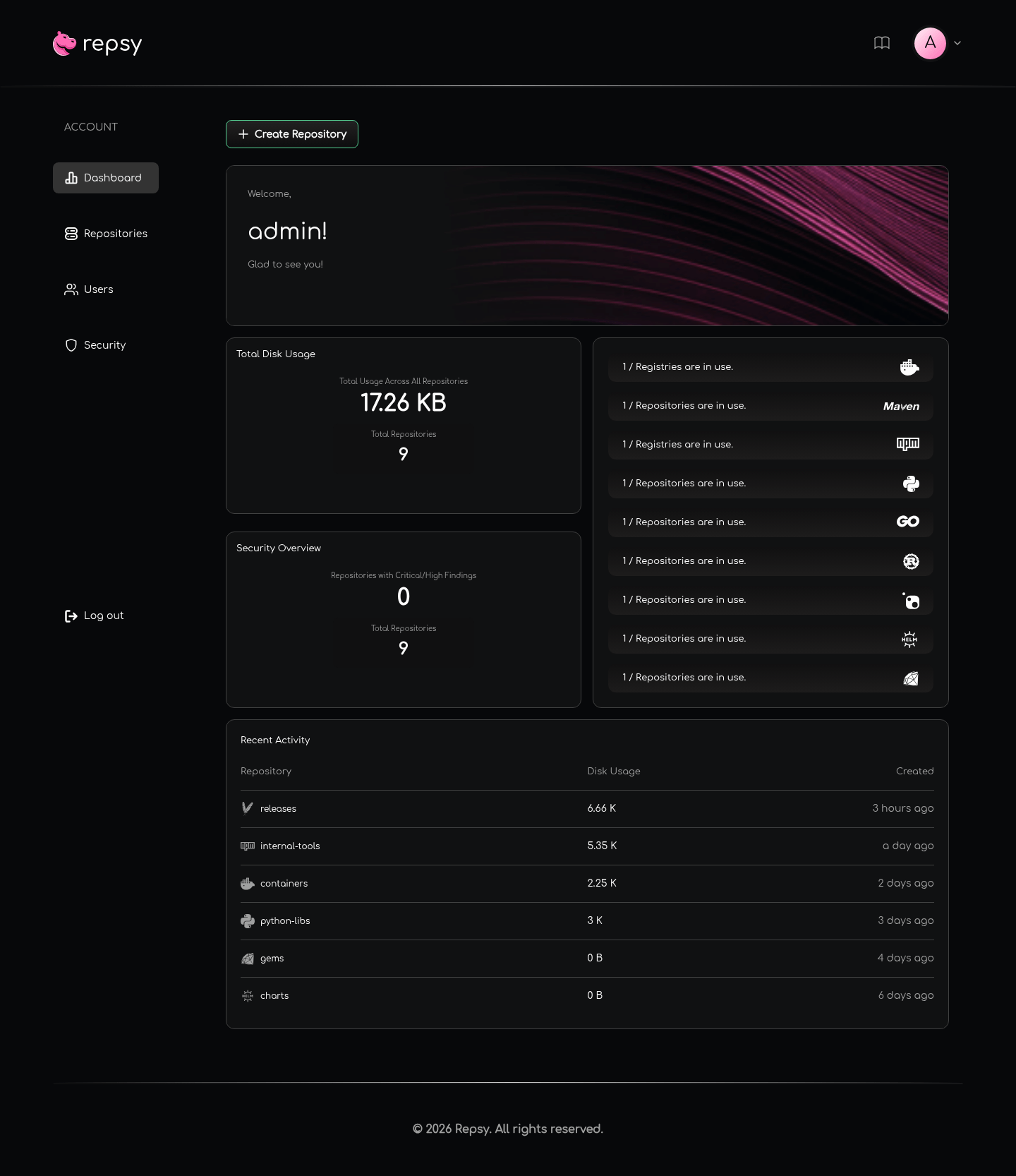
The dashboard is the first page after you sign in. It shows:
- A welcome card with your username.
- Total Disk Usage across all repositories, and the number of repositories.
- Security Overview: how many repositories have critical or high findings in their vulnerability scans, next to the
total number of repositories. Without a vulnerability scanner it shows
0. - One row for each package format with the number of repositories of that format. Click a row to open the repository list filtered to that format.
- Recent Activity: the six newest repositories, with their disk usage and age. Click one to open it.
- A Create Repository button, for administrators.
admin.Repositories
The list of all repositories with their name, package format, visibility, creation date and size. Use the search box to find a repository by name and the selector to show one package format, and refresh the list with the refresh button. The list shows ten repositories per page, newest first.
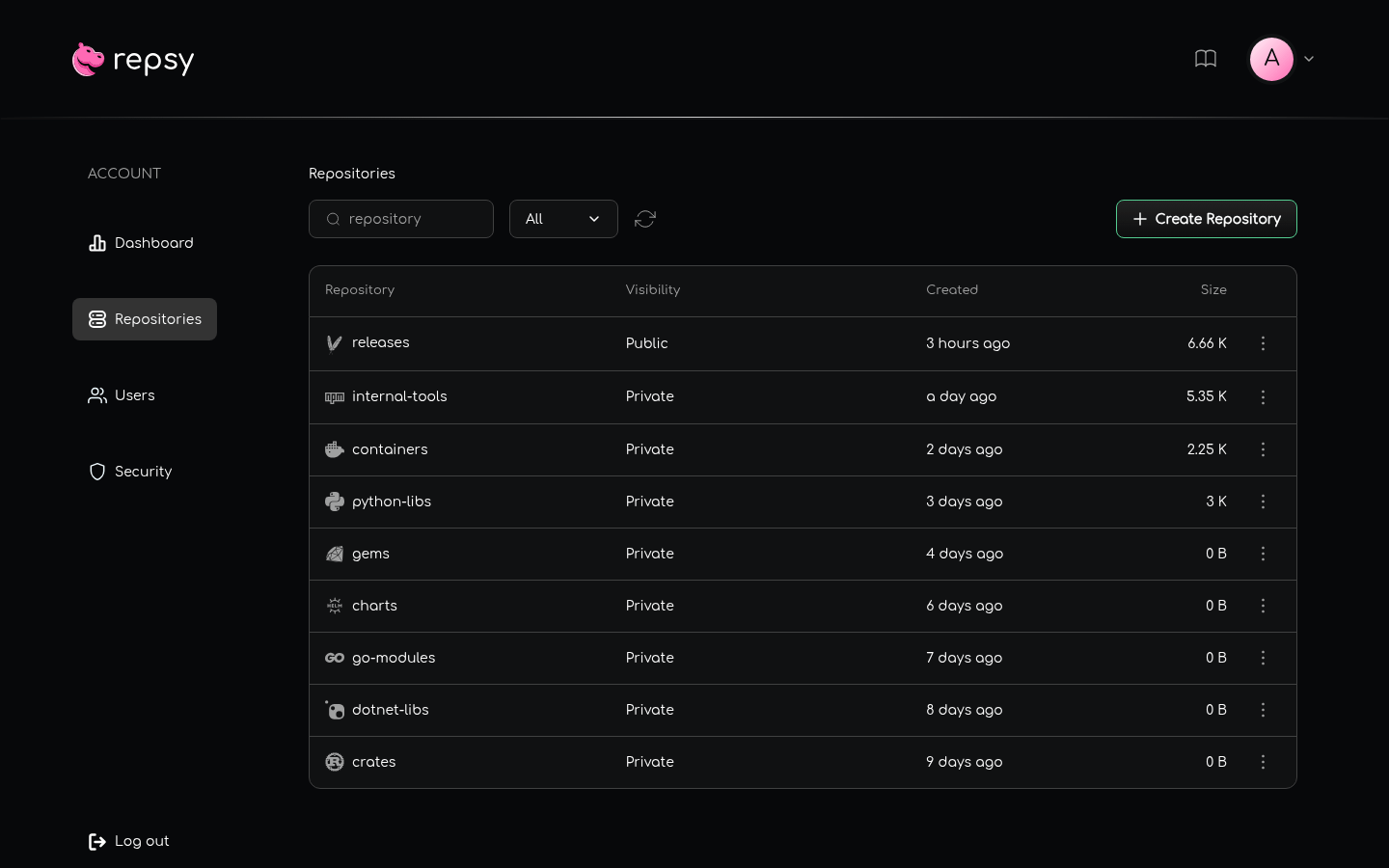
Click a repository to open it. Administrators also get Create Repository and a menu (⋮) on every row with Settings and Delete. See Creating Your First Repository.
A Repository
A repository opens on the list of what it contains: artifacts, packages, images, crates, modules, charts or gems, depending on the package format. From there you can:
- Search, sort and refresh the list.
- Drill down: a package shows its versions, and a version shows its details together with the command to install it. Docker goes from an image to its tags and manifests.
- Click Configure to see the client configuration for this repository, filled in with your repository address. See Ports and Repository URLs.
- Click Browse Files in a Maven repository to walk through its directories and download files.
- Click Settings, if you are an administrator.
Administrators can also delete packages and versions here. See Browsing and Deleting Packages.
Repository Settings
Administrators reach the settings of a repository from the repository list, or with the Settings button of the repository. The page has these sections:
| Section | What it does |
|---|---|
| Visibility | Makes the repository private or public. |
| Package Override | Allows or refuses uploading a version that already exists. Not available for Cargo and Go, which never overwrite a version. |
| Version Allowance | For Maven: accept all packages, only snapshots or only releases. For NuGet: all packages, only pre-releases or only stable versions. |
| PGP Signature Key Stores | For Maven: how uploaded signatures are verified. |
| Vulnerability Scanning | Whether newly pushed versions are scanned automatically. Only for the package formats the scanner supports. |
| Deploy Tokens | Creates, rotates and revokes the deploy tokens of the repository. See Creating a Deploy Token. |
| Repository Storage | The disk space the repository uses. |
| Repository Info | Renames the repository and edits its description. |
| Orphan Layers and Untagged Manifests | For Docker: cleanup actions. |
| Delete Repository | Deletes the repository and everything in it. |
Visibility, Package Override and Version Allowance apply the moment you change them. There is no Save button for them. Configuring Repository Settings explains every section.
Users
Administrators manage the user accounts here: create a user and pick the ADMIN or USER role, rename a user, change the
role, reset a password and delete a user. The list shows each user’s role, creation date and last login, and can be searched
by username. See Managing Users.
Security
Administrators see the results of vulnerability scans across all repositories: a chart of the severity distribution and the list of scans, which you can filter by severity, package format and repository name. Scanning is optional and has to be set up on your instance, so the page stays empty until then. Scanning covers Maven, npm, PyPI and Docker repositories.
Profile
Every user can change their own password and username, or delete their own account here. See Managing Your Account.
What Each Role Can Do
There are two roles. The USER role can read and publish in every repository; the ADMIN role can also manage. See
Understanding Public vs Private for the rules.
| In the web UI | USER | ADMIN |
|---|---|---|
| Dashboard, repository list, packages, versions and install commands | Yes | Yes |
| Configure dialog of a repository | Yes | Yes |
| Profile: password, username, delete own account | Yes | Yes |
| Create, rename and delete repositories | No | Yes |
| Repository settings and deploy tokens | No | Yes |
| Delete packages and versions | No | Yes |
| Users page | No | Yes |
| Security page | No | Yes |
Pages and buttons that a USER cannot use are hidden. If a USER opens the address of an administrator page anyway, they
are sent back to the dashboard or the repository list.

