

 Edit This Page
There is no sign-up in Repsy Open Source: you use the repositories of your own instance. A Docker repository is your registry. A private repository needs a login to be read or written, and a public repository can be pulled without one. This page shows how to find or create a Docker repository and where to get the credentials the Docker CLI needs.
The Default Repository
When the first user of an instance is created, Repsy creates a private Docker repository named docker (and one private repository of every other type). If you only need one registry, you can use it right away: the images in it are named <your-repsy-host>/docker/<image-name>:<image-tag>.
Create a repository
You need the ADMIN role to create repositories. Other users can use every repository, but they cannot create, rename, change or delete one.
- Sign in to the web UI of your instance and go to the Repositories tab.
- Click Create Repository. The dialog starts on the type Docker, unless the repository list is filtered to another type.
- Enter a Name. It can have up to 25 characters: letters, digits,
_and-, and it cannot start with-. Some names are reserved for the web UI and are refused. Docker only accepts lower-case image references, so give the repository a lower-case name. - Leave the visibility on Private, or switch it to Public if anyone should be able to pull from the repository without credentials. You can change it later in the repository settings. Pushing always needs credentials.
- Optionally add a description and click Create.
Find the registry address
The address that Docker uses is the repository address of your instance without http:// or https://, that is, host and port. Repsy calls it <your-repsy-host> on these pages, for example localhost:9090. The name of the repository is the first path segment of every image:
<your-repsy-host>/<repo-name>/<image-name>:<image-tag>
Open the repository in the web UI and click Configure to see the docker login and docker pull commands with the address and the name of the repository filled in. The address in these commands comes from the REPO_BASE_URL setting of your instance, see Ports and Repository URLs.
Get your credentials
The Docker CLI authenticates with a username and a password, and there are two choices:
- A user account. Use the username and the password you sign in to the web UI with.
- A deploy token. Open Settings of the repository (the more options menu (⋮) of the repository in the Repositories tab), go to Deploy Tokens, click Create Token, fill in the form and copy the token when Repsy shows it. It is shown only once. A token belongs to one repository and can be Read/Write or Read Only. Enter the token where
docker loginasks for the password. Repsy checks only the token, so the username can be any value. See Creating a Deploy Token.
Use a deploy token in CI jobs and whenever you give somebody access to one repository only. You need the ADMIN role to create deploy tokens.
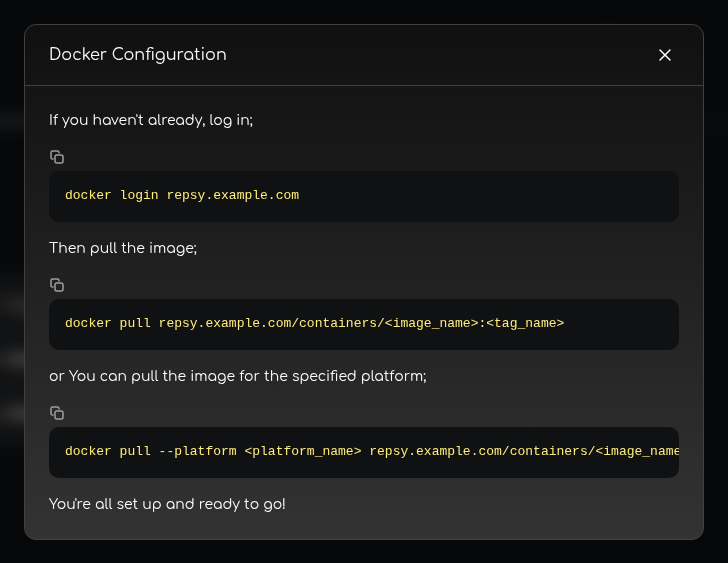
docker login and docker pull commands. Your instance shows its own address instead of the demo address repsy.example.com.You can now push images to your registry and pull them: see Publishing a Docker Image for the short version, or Pushing and Pulling Images with Docker for the tutorial.

