

 Edit This Page
Managing Users
Repsy Open Source has its own user database. Every account is created by an administrator, and every account has one of
two roles: ADMIN or USER. This page explains what the roles allow and how to create, edit and delete users in the
web UI.
Roles and access
Repsy has no per-repository access lists and no repository owners. What a caller may do depends only on whether they are signed in and on their role:
| Caller | Public repository | Private repository |
|---|---|---|
| Anonymous (no credentials) | Read | No access |
USER | Read and write | Read and write |
ADMIN | Read, write and manage | Read, write and manage |
“Private” therefore means “login required”, not “restricted to certain users”. Every user account on the instance can
read and write every repository, including the private ones. Only management needs the ADMIN role:
- creating, renaming and deleting repositories, and changing their settings,
- deleting packages and versions,
- creating, rotating and revoking deploy tokens,
- managing users,
- opening the Users and Security pages of the web UI. Both are hidden from a
USER, and aUSERwho opens their address is sent to the dashboard.
A USER who calls a management operation from the web UI gets 403 Access Denied and stays signed in.
Only create accounts for people you trust with every repository of the instance. To give a CI job, an outside contractor or a single team access to one repository, use a deploy token instead of an account. To keep the repositories of two teams apart, run one Repsy instance per team.
The first administrator
The first start of a new instance creates one ADMIN user named admin, together with the default repositories. Its
password is the value of ADMIN_INITIAL_PASSWORD if you set it, and a random password otherwise. In the second case
Repsy logs the password once, at WARN level:
docker logs repsy 2>&1 | grep "temporarily generated password"
ADMIN_INITIAL_PASSWORD is only used when the instance has no admin yet. Changing it later does not change the
password of an existing account. If you set it, it must follow the password rules below, or Repsy refuses to start.
Rules for usernames and passwords
Repsy enforces the same rules when you create a user, edit one, or when a user changes their own account:
| Rule | |
|---|---|
| Username | 3 to 25 characters: lowercase letters a-z, digits, _ and -. |
| Password | 6 to 50 characters, with at least one lowercase letter, one uppercase letter and one digit, and no whitespace. |
Also:
- A username that is already taken is refused with “Username is in use. Please try another one.” So are the names Repsy
reserves for its own use, such as
repsy,docker,maven,npmandanonymous. Reserved names are compared without regard to case, and the message is the same as for a taken name. - Usernames are case-sensitive at sign-in, but new usernames cannot contain capital letters.
- An account created by an earlier release may have a name that breaks the rules, for example one with capital letters. It keeps working: its owner signs in with the exact name they always used. When you edit such an account, you have to give it a name that follows the rules. The password reset marker file works only for names that follow the rules, so use Reset password in the web UI for the others.
Working with users
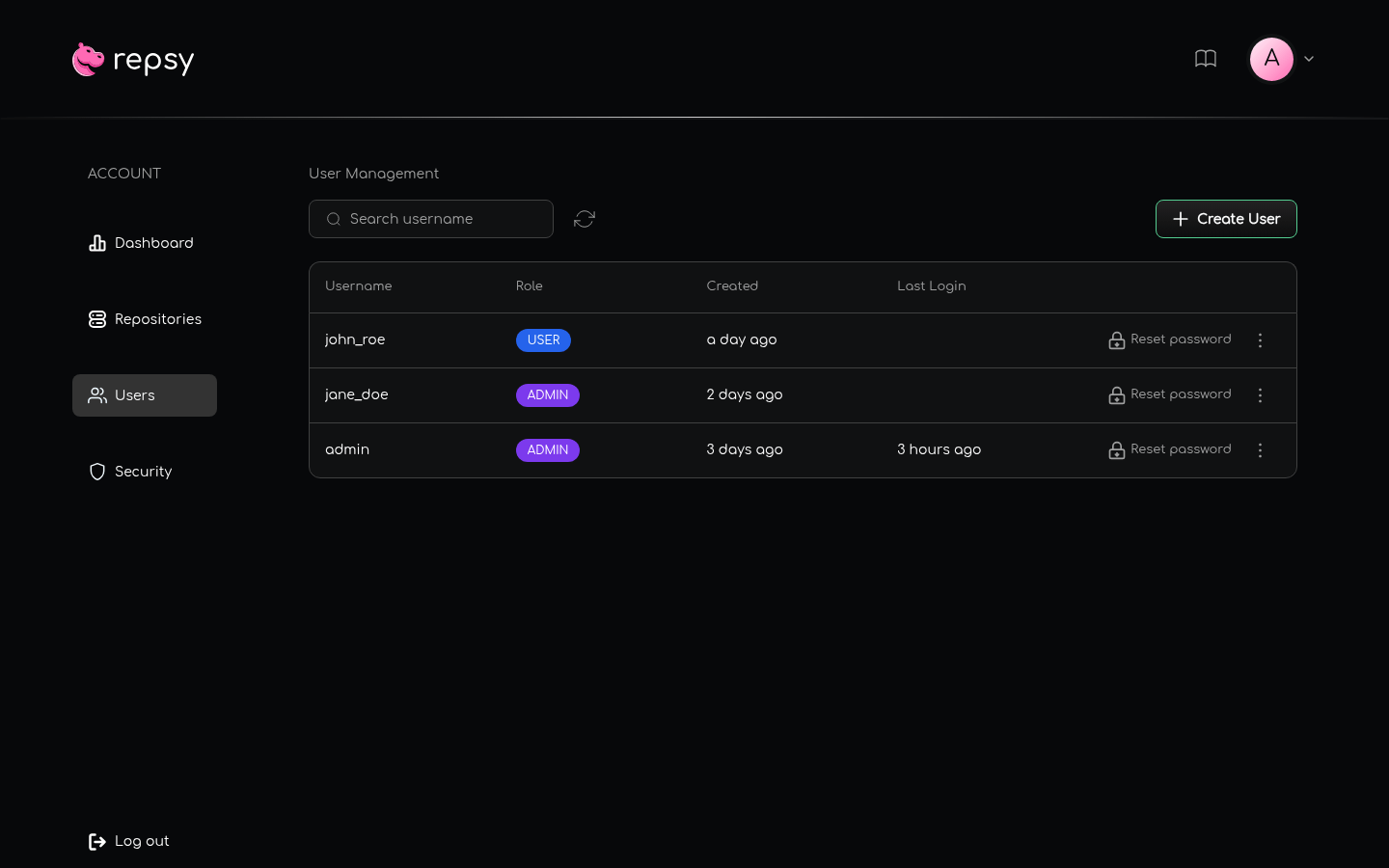
Sign in as an administrator and open Users in the sidebar. The list shows each user’s name, role, creation date and last sign-in, and you can search by username.
Create a user
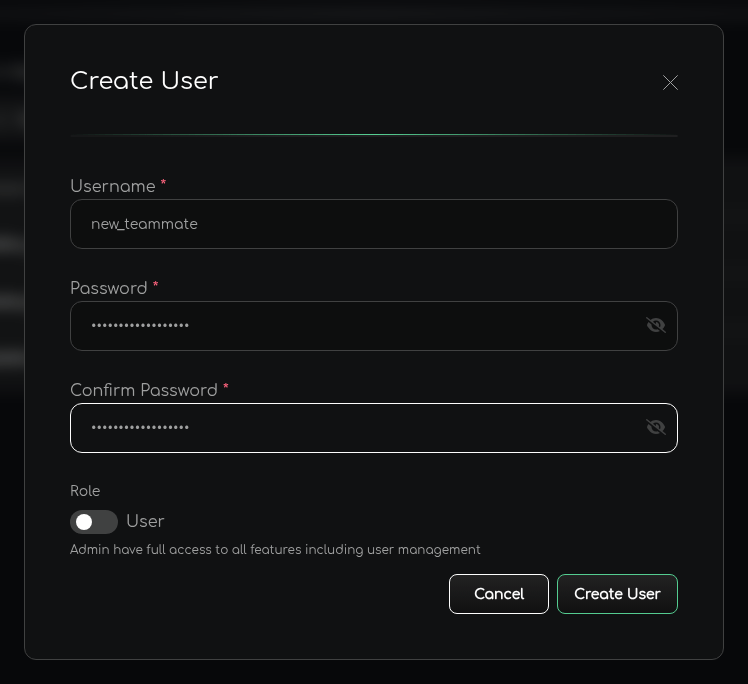
- Click Create User.
- Enter a username, a password and the same password again under Confirm Password.
- Switch Role to Admin if the user needs to manage Repsy. Leave it on User otherwise.
- Click Create User.
Tell the person their username and password. They can change both on their own Profile page.
Edit a user
Open the menu of the user’s row and choose Edit. You can change the username and the role. When you rename a user, their web UI sessions end and they sign in again with the new name. Clients that use the old username and their password need the new name too. Deploy tokens are not affected.
Reset a user’s password
Click Reset password in the user’s row and confirm. Repsy generates a random password, shows it once, and signs the user out of every web UI session. The old password stops working at once. Copy the new password and hand it to the user over a secure channel. They should change it after signing in.
If you reset your own password, you are signed out as well. To keep your session, change your own password on your Profile page instead.
Delete a user
Open the menu of the user’s row, choose Delete and confirm. The account and its sessions are gone. Repsy stores no owner for repositories or packages, so nothing else is deleted with the user: their repositories, packages and deploy tokens stay as they are.
The last administrator
Repsy always keeps at least one administrator. It refuses to delete the only ADMIN (“You cannot delete the last admin
user.”) and it refuses to change its role to USER (“You cannot remove the admin role from the last admin user.”). The
web UI shows this before you try: deleting the last admin says “Cannot delete the last admin user. Create another admin
first.”, and the edit dialog says “Role cannot be changed. This is the only admin user”. Create a second admin first if
you want to replace the only one.
If you lose access to the only administrator, see Recovering a Lost Password.

